
Source: fizkes/Shutterstock.com
Noticing that your computer isn’t as snappy as it used to be? If booting up takes forever, applications lag, and files take too long to open, it’s time for a little digital housekeeping. Just like a cluttered room can slow you down, a packed hard drive can bog down your system’s performance.
One of the easiest ways to extend your computer’s life is to keep your storage tidy. Regular maintenance not only speeds things up but also prevents unnecessary wear and tear. Plus, when it’s finally time for an upgrade, responsible computer recycling ensures your old tech doesn’t just end up in a landfill.
Why Your Hard Drive Slows Down Over Time
Your hard drive works hard, and, over time, it gets cluttered with unnecessary files, background processes, and fragmented data. This buildup forces your system to work harder to find and retrieve information, slowing down performance. When storage fills up, it reduces the available space needed for smooth operation, making tasks like opening files or loading applications sluggish. Understanding the root causes of this slowdown can help you take proactive steps to restore your computer’s efficiency.
Here’s why your system performance takes a hit:
- Unnecessary Files Pile Up – Temporary files, cached data, and old backups clog your storage, making it harder for your computer to find the files you actually need.
- Fragmentation (HDDs Only) – If you’re using a traditional hard drive, files can become fragmented over time, slowing down read and write speeds.
- Background Processes Drain Resources – Some applications sneak into your startup programs, eating up RAM and processing power even when you’re not using them.
- Large or Duplicate Files Take Up Space – Storing massive media files or unnecessary duplicates reduces the amount of free space your system has to work with.
If you’ve ever asked yourself why your computer is so slow, now you have a few answers. Let’s get to fixing it.
Step-by-Step Hard Drive Spring Cleaning
Step 1: Free Up Space
Start with the low-hanging fruit — getting rid of unnecessary files and system clutter.
- Use Built-In Cleanup Tools – Windows and macOS both offer built-in utilities to remove temporary files, old updates, and caches.
- Sort Files by Size – Identify large files you no longer need and move them to external storage or delete them.
- Clear Browser Cache – Temporary internet files can take up a surprising amount of space, so clear them out regularly.
Step 2: Uninstall Unnecessary Programs
Old software and bloatware can take up valuable storage and slow down performance.
- Check Installed Applications – Go through your list of installed programs and remove anything you don’t use.
- Delete Trialware and Bloatware – Many computers come with pre-installed software that’s never been used. Get rid of it.
- Use a Program Manager – Some operating systems offer a tool to highlight rarely used apps, making it easier to decide what to remove.
Source: SomYuZu/Shutterstock.com
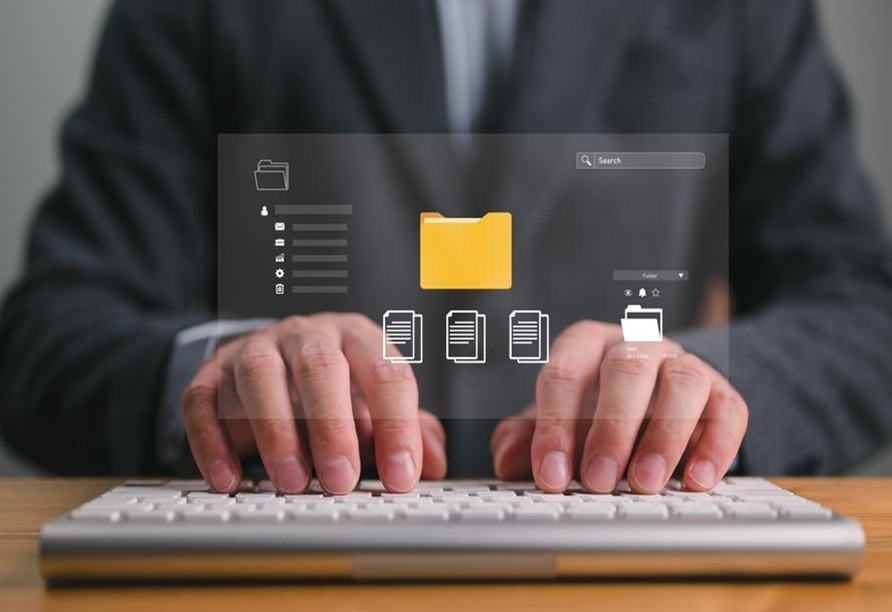
Step 3: Organize Files and Folders
Messy storage slows you down, so a little organization goes a long way.
- Create a Logical Folder Structure – Keep your documents, media, and downloads well-organized for quick access.
- Move Large Files to External Storage – Offload high-resolution photos, videos, and other big files to an external drive or cloud storage.
- Use Automated Cleanup Features – Some operating systems allow automatic deletion of old or redundant files.
Step 4: Manage Startup Programs
Too many applications launching at startup can drastically slow boot times.
- Disable Unnecessary Startup Apps – Check your settings and turn off any programs that don’t need to launch when you start your computer.
- Use Task Manager or System Preferences – Both Windows and macOS offer tools to manage startup items easily.
- Prioritize Essential Apps – Keep security software enabled but remove unnecessary background apps.
Step 5: Run Disk Maintenance
A little maintenance can extend your hard drive’s lifespan and keep your system running efficiently.
- Check for Overheating – If your system is still sluggish after cleanup, high CPU temperatures might be to blame. Excess heat can cause throttling, slowing down performance and increasing load times. Monitor your CPU temperature and improve airflow or reapply thermal paste if needed.
- Defragment HDDs – If you’re still using a traditional hard drive, running a defragmentation tool will help reorganize fragmented data.
- Enable TRIM for SSDs – Solid-state drives don’t need defragmentation, but ensuring TRIM is enabled helps maintain peak performance.
- Scan for Disk Errors – Running a disk check can help identify and fix potential issues before they become bigger problems.
When to Consider Upgrading Your Storage
Even with regular maintenance, some computers reach a point where an upgrade is the best option. Over time, hardware limitations can prevent even a well-maintained system from keeping up with modern applications and workloads. When storage consistently runs low, load times remain sluggish, or crashes become frequent, an upgrade might be the only way to restore smooth performance.
Upgrading your storage can dramatically improve performance, and choosing the right type of drive is key. Hard disk drives (HDDs) offer more affordable storage, making them ideal for large file storage but at the cost of slower speeds. Solid-state drives (SSDs), on the other hand, provide a significant speed boost, leading to faster boot times and quicker application load speeds. Understanding the benefits of each can help determine whether an upgrade is the right solution for persistent slowdowns.
Here’s when you should consider it:
- Constant Low Storage Warnings – If you’re always battling for free space, a larger drive may be necessary.
- Slow Load Times Persist – Even after cleanup, sluggish application or game load times may indicate storage bottlenecks.
- Frequent Freezing or Crashes – Your drive may be nearing the end of its lifespan.
Hard disk drives (HDDs) offer more affordable storage, but solid-state drives (SSDs) provide a significant speed boost. If you’re wondering how to check CPU temperature, now might be a good time. Overheating components can also contribute to slowdowns.
Proactive Maintenance Tips
Keeping your hard drive clean isn’t just a one-time thing. Stay ahead of the clutter with these tips:
- Set Up Automatic Cleanup – Enable built-in OS tools to automatically remove junk files at regular intervals.
- Perform Routine Audits – Every few months, go through your files and remove anything unnecessary.
- Store Large Files Elsewhere – External drives and cloud storage help free up system space without deleting valuable data.
Source: Andrey_Popov/Shutterstock.com
Keep Your Tech Running Smoothly
A sluggish computer doesn’t have to be the norm. Regularly cleaning up your hard drive, managing startup programs, and optimizing your storage will help keep things running smoothly. If your system still feels slow despite your best efforts, an upgrade might be the best solution. Keeping your tech in top shape doesn’t take much effort, but it does make a huge difference in performance.
